Using Libertas Studio
Studio helps you take App source to a running Hub, inspect its generated
interface, and diagnose deployment. Start with a commissioned Hub and a
TypeScript or Rust project. Studio requires Hub service version
20260803000000 or later and rejects obsolete login/session message flows.
Legacy Hubs are supported only by the separate Android/iOS compatibility paths. Getting started explains Apps,
tasks, and clients; developing Apps introduces source work.
TypeScript support is under development and not release ready.
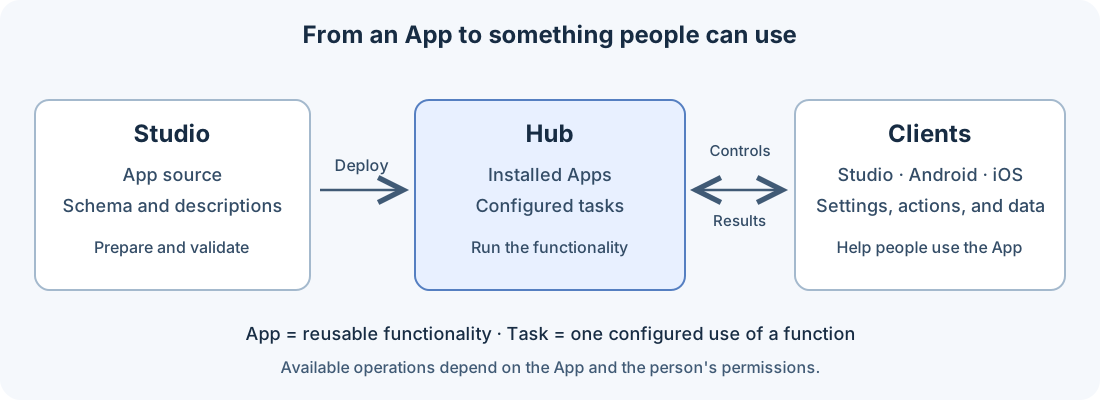
The Hub runs the task. Studio's deployment prepares the software that a task will use; deployment alone does not create a configured task.
First-time initialization
On first launch, Studio automatically downloads its local Qwen embedding model (about 396 MB). The extension package contains the native inference runtime; model weights are downloaded separately. Studio checks the model's size and SHA-256 before installing it in persistent VS Code user storage, where it can be reused after extension upgrades.
The Global Initialization page shows download and verification progress. Wait for Ready, then choose Close & Proceed. If the download fails, restore network access and choose Retry download. Incomplete downloads are discarded. Later launches reuse the verified file; a missing or invalid file is downloaded again. Inference loads only when a feature needs an embedding, such as Plaza publication. Other Studio workflows remain available while the model downloads; embedding requests wait for initialization.
Using Studio MCP with Codex or Claude Code
You can check App schemas before connecting a Hub, then ask your coding agent
to deploy after the App passes validation. Install Node.js so node is
available on your PATH, install the project's dependencies, and open Studio.
- Run Libertas: Configure Studio MCP for Codex or Libertas: Configure
Studio MCP for Claude Code from the Command Palette. The Codex command
preserves unrelated user settings; the Claude Code command requires its
claudecommand to be installed and available on your PATH. - Restart the selected coding agent to load the MCP tools.
- Ask it to edit the App and validate saved source. For example: “Add the
requested configuration field, use
compile_schemato fix schema errors, then run the App's tests.” - When ready, explicitly ask it to deploy to a named registered Hub. The
agent uses
list_deployment_hubsto get the exact Hub ID, callsdeploy_appwith that ID and the absolute project directory, and pollsdeployment_statusuntil the job succeeds or fails. Keep VS Code and Libertas Studio open throughout deployment.
The server supplies the validation and deployment workflow to the agent. Request artifacts when you want to inspect the root and all dependent schemas; ordinary checks return compact diagnostics. See the schema compilation contract for inputs, dependency completeness, and validation limits. The MCP deployment contract covers automatic submission, progress, and errors. After updating Studio, activate it once to refresh the registered MCP launcher.
Live preview while editing display.json
Once the MCP tools are loaded, an agent can hold a conversational edit loop on
a screen's presentation without leaving the chat: edit display.json, call
compile_schema to fix any diagnostics, then call preview_display with the
screen's protocol variant or function name and a device form. Studio opens a
Display Preview panel showing that screen on the chosen device if none is open
for the project, or refocuses and switches the one already open; every later save
to display.json (through compile_schema again) re-renders the same
preview live, so the agent keeps iterating on layout and style without
repeating the tool call for each save.
The JSON result tells the agent exactly what the user is now looking at: the
preview state (opened, refocused, or headless with a reason when no
panel can show it), the resolved device conditions and window, and the root
node's resolved layout, style, and hints. Passing a Libertas Schema Path in
select also returns the matched rules in cascade order with the winning
members and each rule's source (a display.json line or a source attribute's
file and line), so the agent can confirm which rule is winning instead of
guessing. Compile diagnostics ride along, and templateCurrent is false
after a failed compilation, when the preview is still showing the last good
template.
preview_display never goes silent: it always opens or refocuses a preview
when Studio can show one, and it fails explicitly, with a clear error, when
VS Code or Libertas Studio is not running rather than leaving the agent to
guess why nothing changed.
Managing Libertas Hubs
To run, debug, or deploy your TypeScript or Rust Apps to the platform, you must connect your VS Code environment to one or more Libertas Hubs. Hub commissioning is never performed by VS Code: complete it first in the Libertas mobile app. Hub connections are managed through the Libertas Activity Bar and sidebar webview in VS Code.
1. Connecting a Commissioned Hub
Connecting a Hub triggers a secure QR authorization process that registers VS Code as a client without exposing raw user credentials. The extension refuses setup and recovery-state Hubs before requesting QR authorization.
- Open the Libertas View in the VS Code Activity Bar.
- In the Connect to a Commissioned Hub section, enter a friendly Hub Name and the Hub's IP Address / Host.
- Click Connect Hub. The extension will initiate the secure client-authorization sequence:
- Studio checks that the Hub is commissioned and ready for user login.
- Scan the displayed one-time QR code with a Libertas mobile app already authenticated to that Hub. The user who scans and approves becomes the Studio client's user; Studio does not ask you to select another user.
- Studio stores the resulting credential in VS Code Secret Storage. Never copy credentials into project files or paste them into an Admin form.
2. Testing Hub Connection
You can check if a registered Hub is online and has maintained its secure connection status:
- Locate the Hub in the sidebar's Configured Platforms list.
- Click the Test TLS Connection icon next to the Hub.
- The extension performs a TLS handshake and verifies that the remote certificate fingerprint matches the recorded secure signature. A warning is shown if there is a hash mismatch (indicating the Hub was reset or there is an active man-in-the-middle event).
3. Deleting a Hub
If you no longer need to develop against a specific Hub:
- Find the Hub in the sidebar's Configured Platforms list.
- Click the Delete Hub (trash) icon.
- The extension purges the Hub configuration and its corresponding cryptographic tokens from the system's VS Code Secret Storage.
Deploying to a Hub
Deployment prepares the selected TypeScript or Rust App, its schema, and its localized documents for one Hub. Choose the Hub that should run the result; publishing to Plaza is a separate workflow.
1. The Deployment Workflow
When you initiate a deployment using the Libertas: Deploy to a Hub command or the Deploy button in the Libertas Sidebar, select a project if prompted:
- Local schema parsing: A deployment tab opens immediately and shows an
indeterminate waiting screen while Studio extracts and validates the schema
and default-locale documentation from TypeScript JSDoc or Rust source/rustdoc.
Parsing can take several dozen seconds. The declared
DefaultLocaleapplies; omission meansen. Parsing errors appear in this tab. - Hub selection: After parsing, choose a registered Hub in the same tab. A deployment started from a Hub card preselects that Hub. Studio then confirms developer mode and shows any failure in the tab.
- Dependency preflight: Studio prepares the complete dependency-first plan. It distinguishes deployable local projects, package-cache comparison inputs, and exact Plaza transitive releases. Missing source, incompatible schemas, cycles, unresolved exact releases, or conflicting pins stop before install.
- Compilation validation: Studio type-checks and bundles executable TypeScript projects locally. Rust source is built natively by the Hub after submission. Types-only packages skip executable compilation. Preparation progress and errors remain in the deployment tab.
- Hub metadata and translations: Studio uses current Hub metadata and patches existing localized documents against the new structure, preserving translated text by native schema identity where possible. Review changed structure as described in the translation migration guarantees.
- Schema review: The Schema Editor replaces the preparation screen in the same tab. Review the requested package and any read-only referenced packages. For a multi-package deployment, its notice shows the dependency-first queue and explains that a failure stops later packages. Choose Submit to start.
- Local workspace sync:
When you click Submit, the extension synchronizes and saves all finalized localized translation files (
.doc.json) directly back into your local workspace folder, so you can review and commit the changed files. Studio does not commit them for you. - Deployment and build progress: The tab becomes the Build Monitor. Studio
installs and verifies exact Plaza dependencies first, then deploys local
packages in dependency order. A failed dependency stops its dependents. The
dependency contract defines the exact checks,
version rules, and read-back behavior. Studio uploads the generated schema,
localized documents, and executable code or Rust source. For an executable Rust
package, the Hub parses the uploaded
Cargo.tomlbefore admitting the build. If explicitly declared native build packages are missing, deployment automatically opens a modal containing the complete APT plan. Install and Continue applies that short-lived plan and resubmits the exact same source revision; closing or rejecting the modal ends the deployment and queues nothing. No separate package-management command is required for this flow. See Build and deployment metadata for declarations, target selectors, permissions, and the distinction between build and runtime packages.
Schema Editor
A Hub-loaded Schema Editor reads the selected Hub's schema and documents. A
local editor reads workspace source and .doc.json files. Confirm which mode
and package you opened before editing. Referenced packages can be read-only.
The default document comes from source; correct its labels and descriptions there. The translation guide owns locale selection, Codex and manual handoffs, immediate import persistence, and staged removal. Imported translations in a Hub-connected editor upload immediately, without OK.
Logs and source editing
Use Libertas: Monitor Hub or Monitor to view streaming execution logs. The log list scrolls while its controls remain visible and presents connection and session status in readable form. A connection failure is distinct from an App build or runtime failure; see troubleshooting.
In TypeScript comments, typing @Libertas offers completion descriptions and
parameter snippets. Libertas annotations receive syntax highlighting. The
source annotation reference owns supported
spellings and arguments; completion is an editing aid, not an additional API.
Configure and use the deployed App
After deployment succeeds, use Administration to create and edit tasks. Use Task controls for requests and live results. Choose Plaza when you want to publish the verified deployed targets.