Developing Apps
1. Start with data
Software is data interaction. Automation is data interaction without human involvement. Libertas' goal is the smallest design that remains logically complete.
Every App author—including CodeBots—must follow that design principle. Implement your application's behavior. Use the platform for the responsibilities it already owns.
2. Source code describes everything
Declare the data. Explain its meaning. Implement its behavior. Libertas extracts a schema and a language document from your source. Together, they describe three boundaries of the App:
| Boundary | Source declaration | What it tells participants |
|---|---|---|
| Configuration | Entry-function argument types | What a task needs to start: settings, devices, and connections |
| Interaction | Endpoint protocol Union | What can be requested, what comes back, and what can happen next |
| Persistence | Persistent-data Union associated with the function | What the App can save and read as typed records |
Types define structure. Attributes define constraints and presentation. Comments provide names and explanations. The client builds the interface; another App can exchange the same typed data. Authorized AI integrations can use the descriptions to understand the available operations.
A declaration describes behavior; your code performs it. A protocol does not execute an operation, and a persistent-data type does not save a record.
An App is reusable software. A task is one configured instance of its entry function. An Endpoint exposes the task's protocol. A Union chooses one named variant and its payload—for example, a request to change a limit or a response containing the current settings.
The Rust screenshots below come from a synthetic garden showcase. It controls no equipment. Later text-only protocol sketches explain the same ideas without claiming to be a complete sprinkler implementation. Start with the recipes and the installed SDK for the chosen language. TypeScript is under development and not release ready.
3. Comment is UI
Write for the person using the App. Your source comments become their interface.
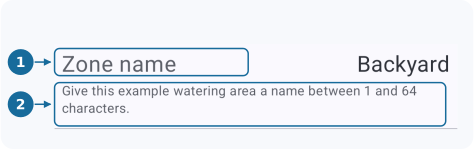
The first ordinary comment line is the display name. The remaining
ordinary lines are the description. UIIncludeDescription puts that explanation
next to the value. Read the two comment lines together, then look at the screen.
RUST SOURCE
/// Zone name
/// Give this example watering area a name
/// between 1 and 64 characters.
#[libertas_ui_include_description]
pub zone_name: String;
1 · The first comment line becomes the display name.
2 · The following comment lines become one description.
UIIncludeDescription makes the description visible inline. Ordinary // implementation comments do not become user-facing documentation.
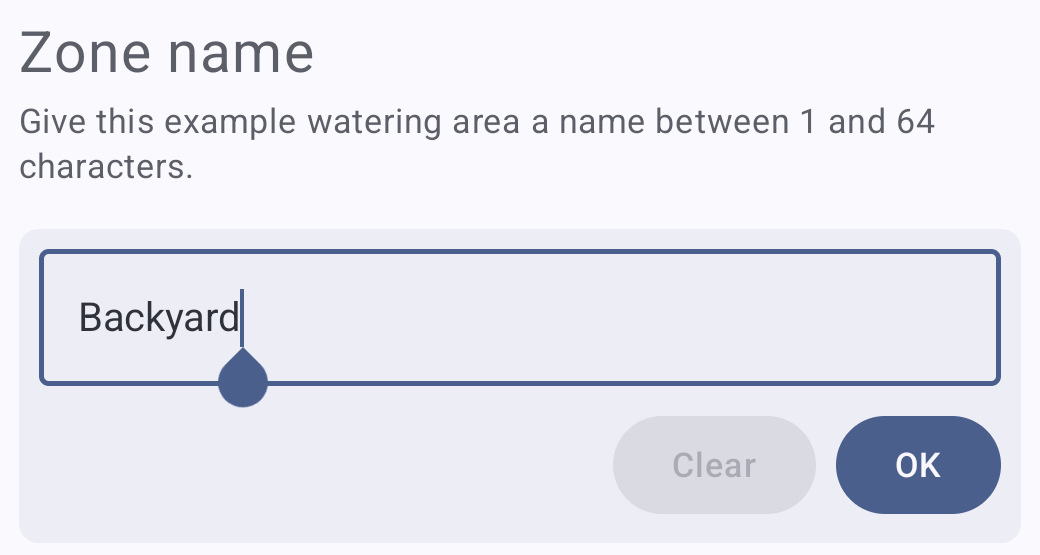
Edit the two values
Tap a value to open its editor.
RUST SOURCE · Daily watering limit
/// Daily watering limit
/// Choose a whole number from 1 to 120 minutes per day. This preview does
/// not schedule watering or control equipment.
#[libertas_number(min = 1, max = 120, step = 1)]
#[libertas_default(20)]
#[libertas_physical_unit("minute")]
#[libertas_ui_include_description]
pub daily_limit_minutes: u32,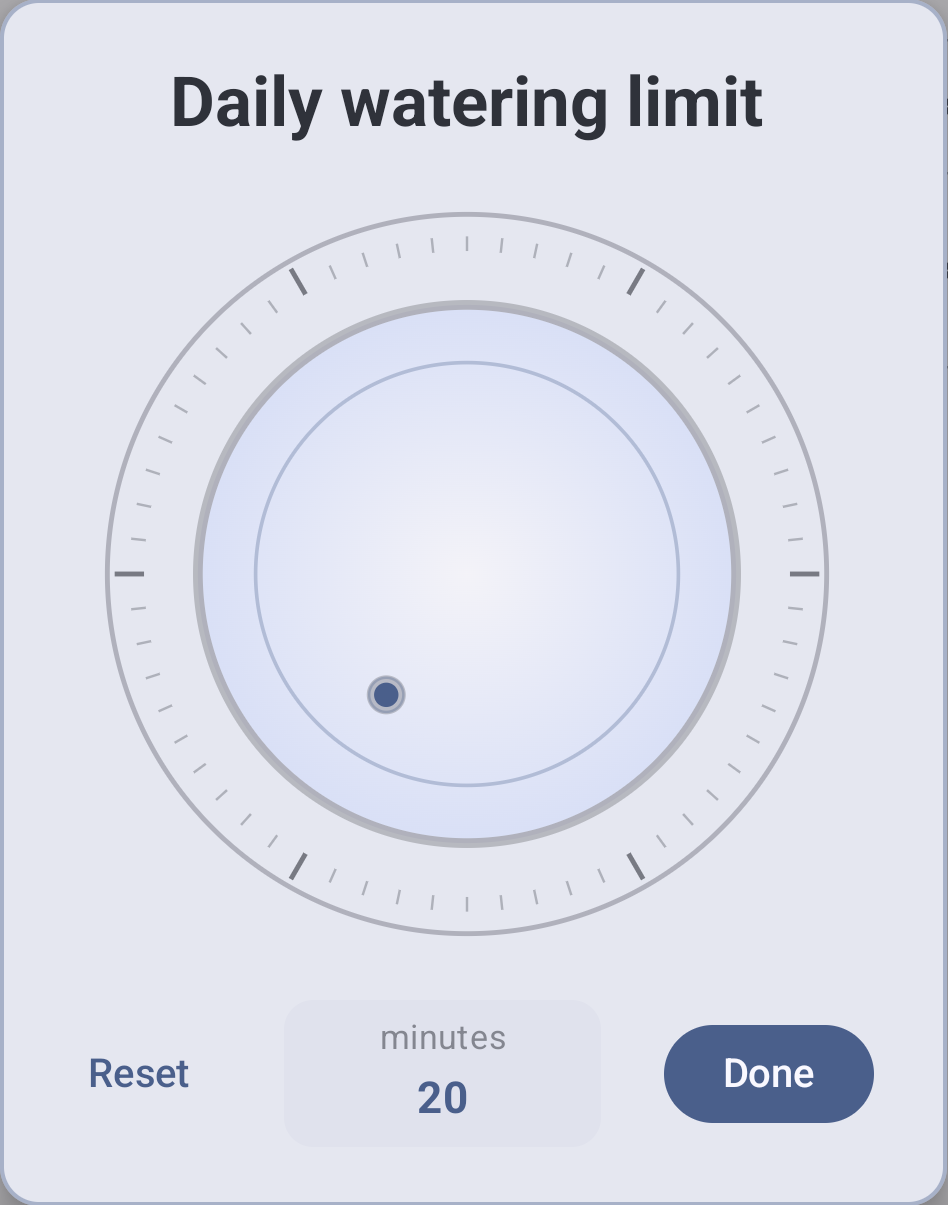
Complete, copyable source
Use the project setup from the Rust manual,
with libertas and libertas_macros dependencies and an rlib library target.
alloc supplies the owned string. LibertasExport exposes the configuration
shape to schema tools; LibertasAvroDecode receives the configured value.
Show complete src/lib.rs
//! Guide showcase
//! Demonstrates forms using synthetic garden settings without controlling equipment.
//! #[libertas_default_locale("en")]

#![no_std]
#![forbid(unsafe_code)]

extern crate alloc;

use alloc::string::String;
use libertas_macros::*;

/// Garden settings
/// The example area name and daily limit used to demonstrate a configuration form.
#[derive(Clone, Debug, LibertasExport, LibertasAvroDecode)]
pub struct Configuration {
    /// Zone name
    /// Give this example watering area a name between 1 and 64 characters.
    /// [DefaultText]
    /// Backyard
    #[libertas_size(min = 1, max = 64)]
    #[libertas_ui_include_description]
    pub zone_name: String,

    /// Daily watering limit
    /// Choose a whole number from 1 to 120 minutes per day. This preview does
    /// not schedule watering or control equipment.
    #[libertas_number(min = 1, max = 120, step = 1)]
    #[libertas_default(20)]
    #[libertas_physical_unit("minute")]
    #[libertas_ui_include_description]
    pub daily_limit_minutes: u32,
}

/// Preview garden settings
/// Choose an example zone name and daily watering limit to explore the generated
/// configuration form. This demonstration does not water a garden or control
/// equipment. Developed by Example Developer (example_developer).
/// [DefaultText]
/// Garden settings preview
#[libertas_export]
pub fn showcase(
    /// Garden settings
    /// The synthetic values used for this configuration example.
    configuration: Configuration,
) {
    let _ = configuration;
}
display.json, beside Cargo.toml, flattens the configuration so its two
fields sit directly under the task instead of beneath a Garden settings
row:
{
  "DisplayVersion": 1,
  "rules": [
    { "select": "^<Configuration>", "flatten": { "name_row": false } }
  ]
}
Choose useful names, defaults, units, bounds, and explanations in the first version. Every App author, including CodeBots, should complete these choices before handing the App to a user. See the documentation contract and annotation catalog for their full rules.
Keep machine identity and visible wording separate. A field can retain the
native name daily_limit_minutes while its label is translated. Changing a
label should not require rewriting protocol mappings.
Defaults deserve a deliberate choice. An unanswered required value may remain undefined until the user supplies it; undefined is not the same as a valid nullable value. User and user-list configuration fields also need an explicit schema Default when you want an initial recipient. They do not automatically select the current user. A Default combined with static ReadOnly can describe a mandatory notification list. The initialization and type rules explain the available representations.
Checkpoint: inspect the generated configuration. Can someone who has never read the code explain each setting and recognize which required answers are still missing?
Shape the screen with promote and flatten
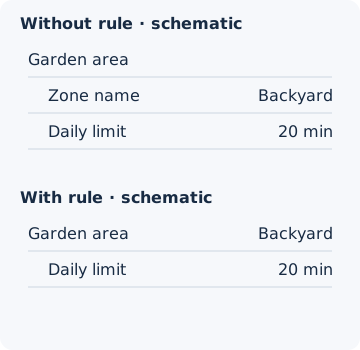
Keep the values fixed and change only one promote or flatten rule in
display.json. promote selects a field of a struct; flatten selects a
struct, List, or Union. In every example, the garden area is Backyard and
its daily limit is 20 min. The diagrams below are schematic row layouts,
not client screenshots. They show labels, values and indentation; ordinary
editing, folding and help controls still belong to the client.
First, a Union chooses the example
A comparison App can offer several layouts through one configuration Union. In Rust, each data-carrying enum variant defines one choice and its associated fields. Selecting a choice opens that variant's fields. This selector is ordinary Union presentation; it needs no template rule.
pub enum LayoutComparison {
    /// Scalar summary: parent name
    /// Compare ordinary rows with a promoted zone name.
    ScalarParent {
        /// Ordinary layout
        ordinary: PlainZone,
        /// Garden area
        arranged: ParentSummary,
    },
    // Other comparison variants follow.
}
The variant's first comment line appears in the choice list. The fields' comments supply their row labels. The types below have the same two fields:
pub struct PlainZone {
    /// Zone name
    pub zone_name: String,
    /// Daily limit
    pub daily_limit_minutes: u32,
}
The following rule fragments assume corresponding ParentSummary,
FieldSummary, FlatZone and UnnamedZone structs. They are schematic:
put the rules in the project's ordinary Display Template file.
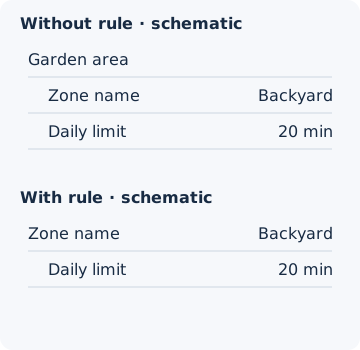
1. Put a field's value on its parent row
Select the field with a promote rule. Backyard moves to the owning
Garden area row, so the separate Zone name row disappears. The
unselected Daily limit remains below it.
{ "select": "^<ParentSummary>.zone_name", "promote": true }
2. Keep the promoted field's name instead
The field rule still promotes Backyard. With "use_parent_name": false,
the promoted row is labeled Zone name instead of Garden area.
The option chooses the label; it does not turn promotion off.
{ "select": "^<FieldSummary>.zone_name",
  "promote": { "use_parent_name": false } }
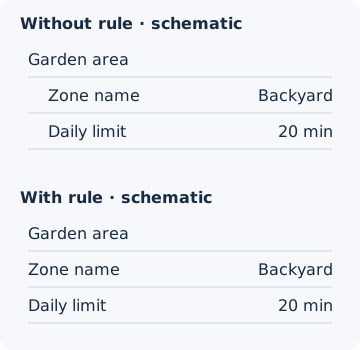
3. Flatten a struct's children
Select the struct type with a flatten rule. The Garden area heading
remains, and both child fields move left. No field value is promoted into that
heading. This is a different effect from selecting a field.
{ "select": "^<FlatZone>", "flatten": true }
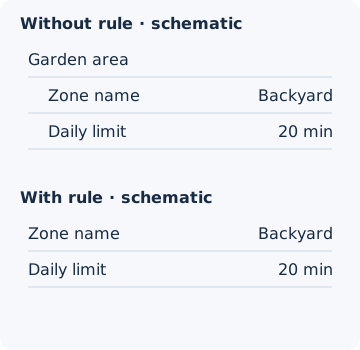
4. Flatten and hide the struct's name row
Keep flatten on the struct type, and set "name_row": false.
Both fields remain visible and editable, but the Garden area name-only
row disappears. The diagram's With rule caption belongs to this guide;
it is not an extra client row.
{ "select": "^<UnnamedZone>", "flatten": { "name_row": false } }
The declarations are identical in each pair; only the display.json rule
differs. promote and flatten change presentation; the fields and their
encoded data hierarchy stay intact. For promote, true means
"use_parent_name": true. Removing a rule removes its layout effect. See the
full promotion contract
and flattening for Union and List
flattening and their combinations, and
labels and titles for replacing a row's
displayed name from its data.
4. Runtime interaction is a protocol
A protocol is a Union type with four message types:
- Request
- Response
- Subscription Request
- Subscription Data
5. Annotations declare protocol state transitions
Start with the data already on screen. The subscription view shows the current garden settings. Its annotations lead the user from data to action.
1. Display SubscriptionData
/// Live garden settings
/// Current synthetic values shared by all viewers of this task. Choose an action to edit one setting.
#[libertas_response]
#[libertas_subscription_data]
// NextRequest is shown in the next step.
Snapshot {
    // Other snapshot fields omitted.
    /// Daily watering limit
    /// The current demonstration limit; no physical watering is performed.
    #[libertas_read_only]
    #[libertas_physical_unit("minute")]
    daily_limit_minutes: u32,
}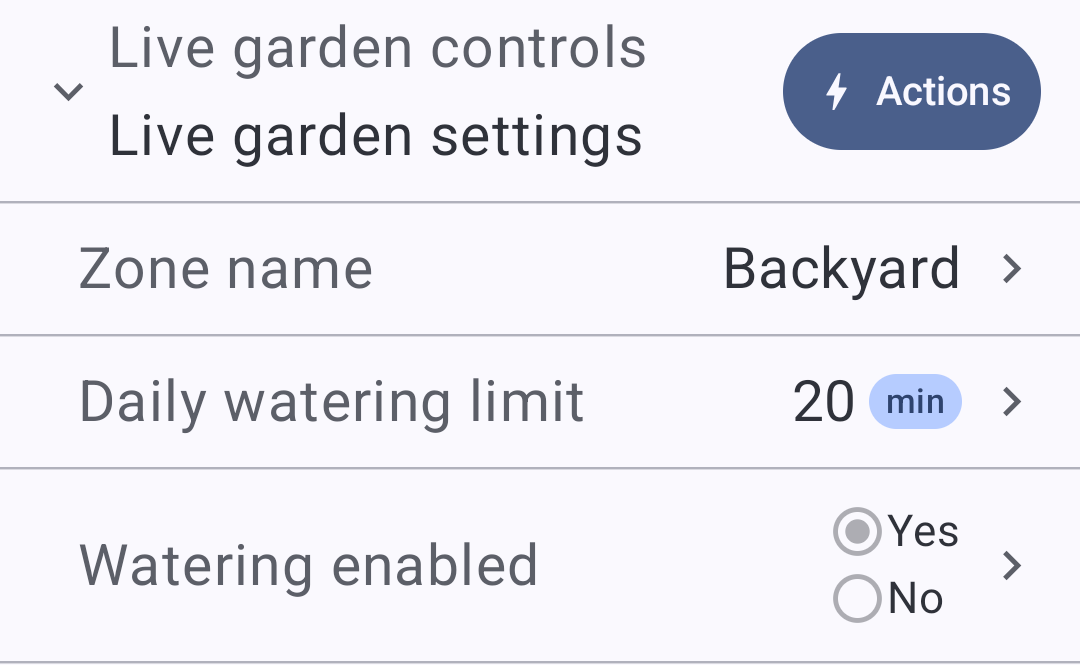
Annotations declare the transitions; comments explain them. Rust processes these annotations without generating executable code; Studio extracts them into the schema.
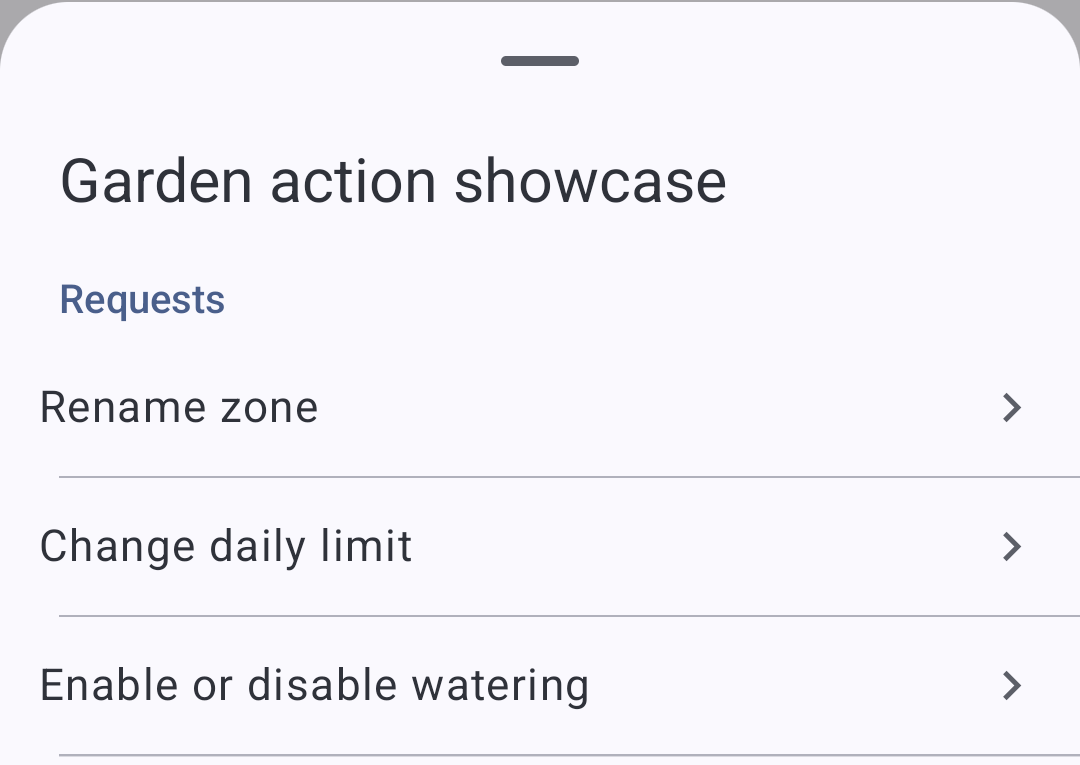
Tap Actions. NextRequest offers three requests in the declared order.
2. NextRequest offers the actions
/// Live garden settings
/// Current synthetic values shared by all viewers of this task. Choose an action to edit one setting.
#[libertas_response]
#[libertas_subscription_data]
#[libertas_next_request("RenameZone,ChangeDailyLimit,SetWateringEnabled")]
Snapshot {
    // Snapshot fields omitted from this excerpt.
}
Select Change daily limit. CopyFrom reads the received value into the
request: 20 on screen → 20 in the editor. The user can change it to 30.
NextResponse(Updated) declares the expected acknowledgement.
3. CopyFrom initializes the chosen request
/// Change daily limit
/// Change the maximum watering time shown in this demonstration.
#[libertas_request]
#[libertas_access_privilege("Write")]
#[libertas_next_response(Updated)]
ChangeDailyLimit {
    /// Daily watering limit
    /// Choose a whole number from 1 to 120 minutes per day.
    #[libertas_copy_from("$.daily_limit_minutes")]
    #[libertas_number(min = 1, max = 120, step = 1)]
    #[libertas_physical_unit("minute")]
    #[libertas_ui_include_description]
    daily_limit_minutes: u32,
},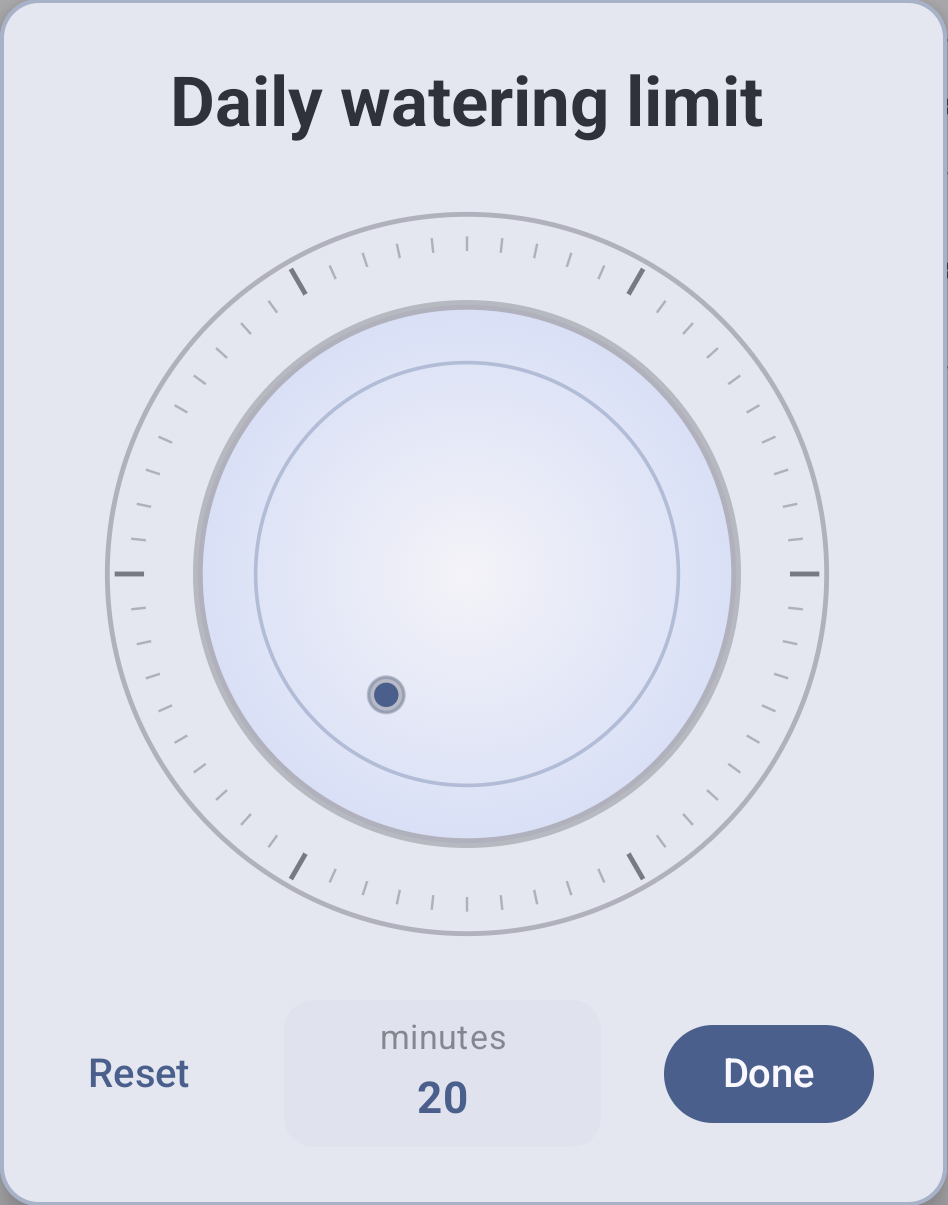
Annotations also define valid input. Here, Number limits the editor to 1–120 minutes. RangeMin, RangeMax, and ValidationRules can use server-supplied data; handle null before the first response. The server validates submissions. See validation rules.
CopyFrom uses the interaction's reference context. It reads received data without fetching from the server. Carry continuation and initialization-only data in hidden fields.
6. The server updates the live view
The request changes the data. The subscription brings it back. For example, change the limit from 20 to 30 and submit:
| Direction | Message | Effect |
|---|---|---|
| Client → App | ChangeDailyLimit { daily_limit_minutes: 30 } |
The App accepts the new limit. |
| App → subscribers | Snapshot { …, daily_limit_minutes: 30, … } |
The live view displays 30. |
| App → requesting client | Updated |
Acknowledges the submitted request. |
This showcase reports the change before acknowledging the request. The acknowledgement completes that request; subscription data updates the view. Submitting an unchanged value receives an acknowledgement without a duplicate report. Reopen Change daily limit and CopyFrom now supplies 30.
Check the full loop: submit 30, watch a second subscribed view update, then reopen the editor. The screenshots above show the starting view and editor; this check exercises the return path. The demonstration keeps values only until task restart and controls no equipment.
Apps can report complete snapshots or compatible reduced updates. Array replacement and explicit append are separate operations.
How the subscription view opens
The first fieldless SubscriptionRequest, Watch, is the default subscription.
The App answers it with a complete correlated Snapshot Response; later
changes arrive as SubscriptionData reports. A report alone does not complete
the opening request. See subscription runtime rules.
/// Watch garden settings
/// Open the current settings and receive later changes while subscribed.
#[libertas_request]
#[libertas_subscription_request]
#[libertas_access_privilege("Read")]
#[libertas_next_response(Snapshot)]
Watch,
The task configuration supplies the starting values and names its Endpoint.
Configure the starting values and create the endpoint
    /// Live garden controls
    /// Open this endpoint to watch settings and choose an action. Changes require write access.
    /// [DefaultText]
    /// Garden action showcase
    #[libertas_endpoint_schema(GardenActions)]
    #[libertas_endpoint_server]
    controls: libertas::LibertasEndpoint,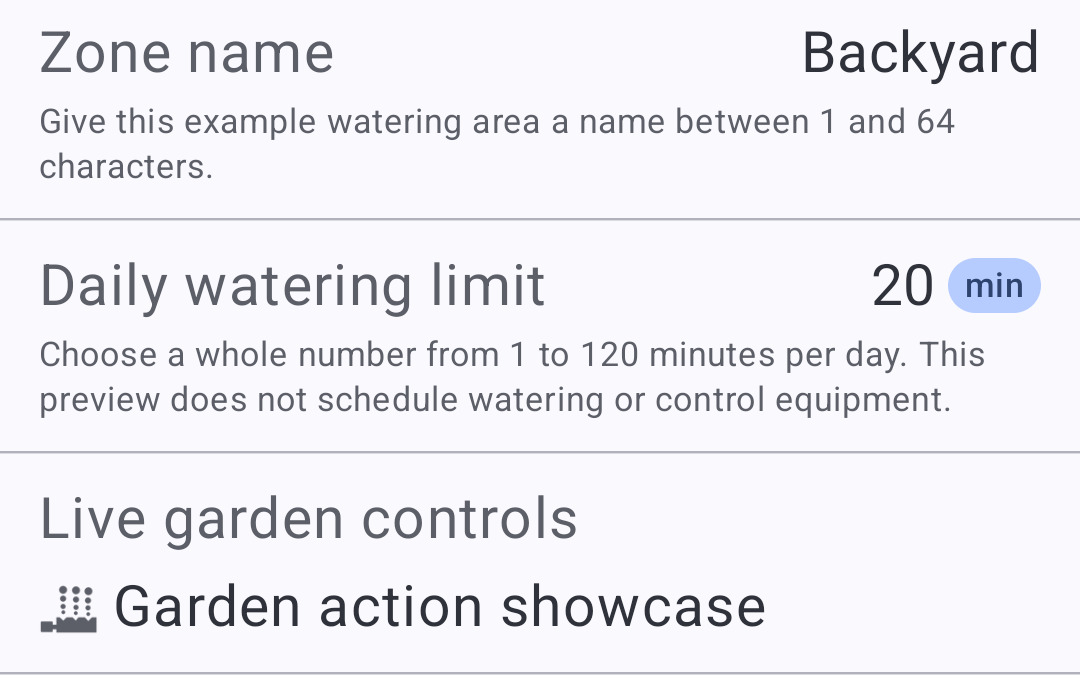
7. Comprehensive localization and charts
Localization reaches every detail: names, descriptions, numbers, physical units, chart titles, axes, and tooltips.
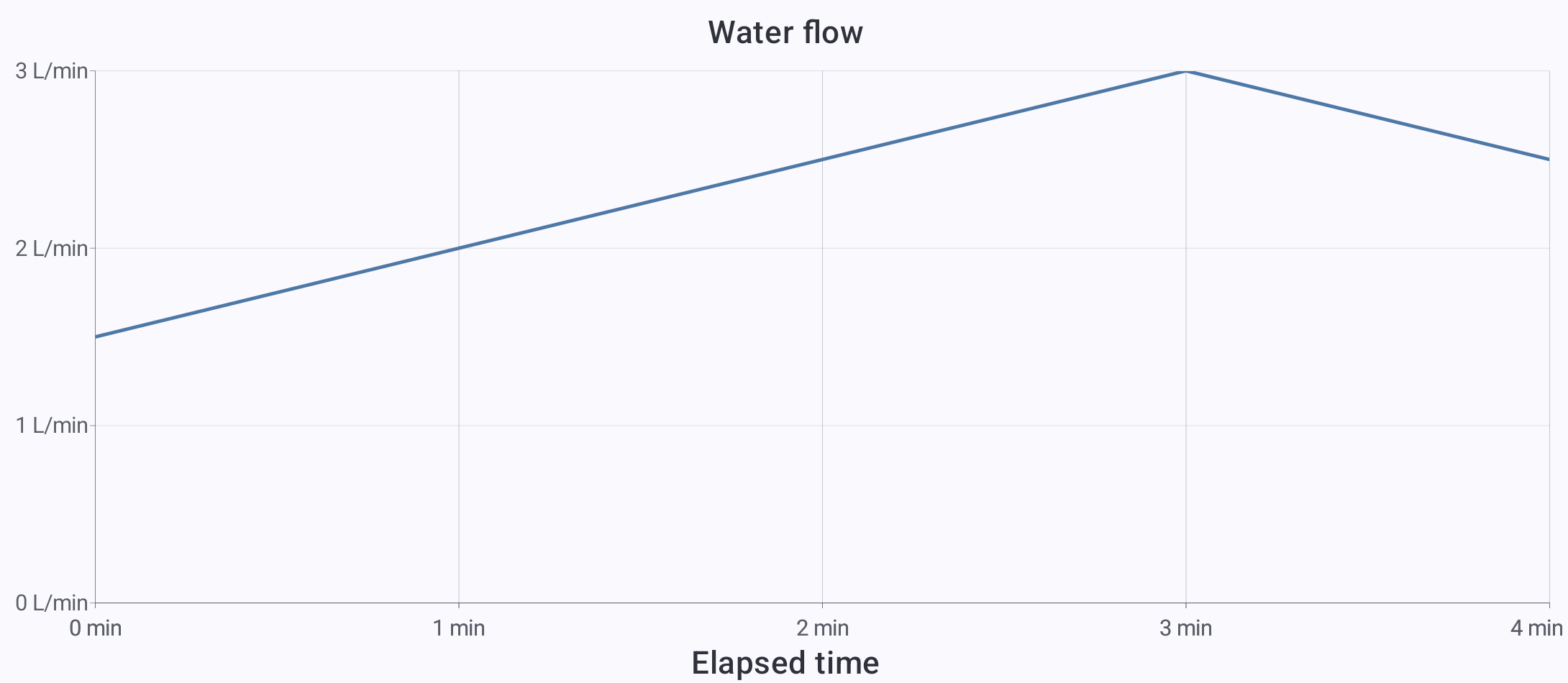
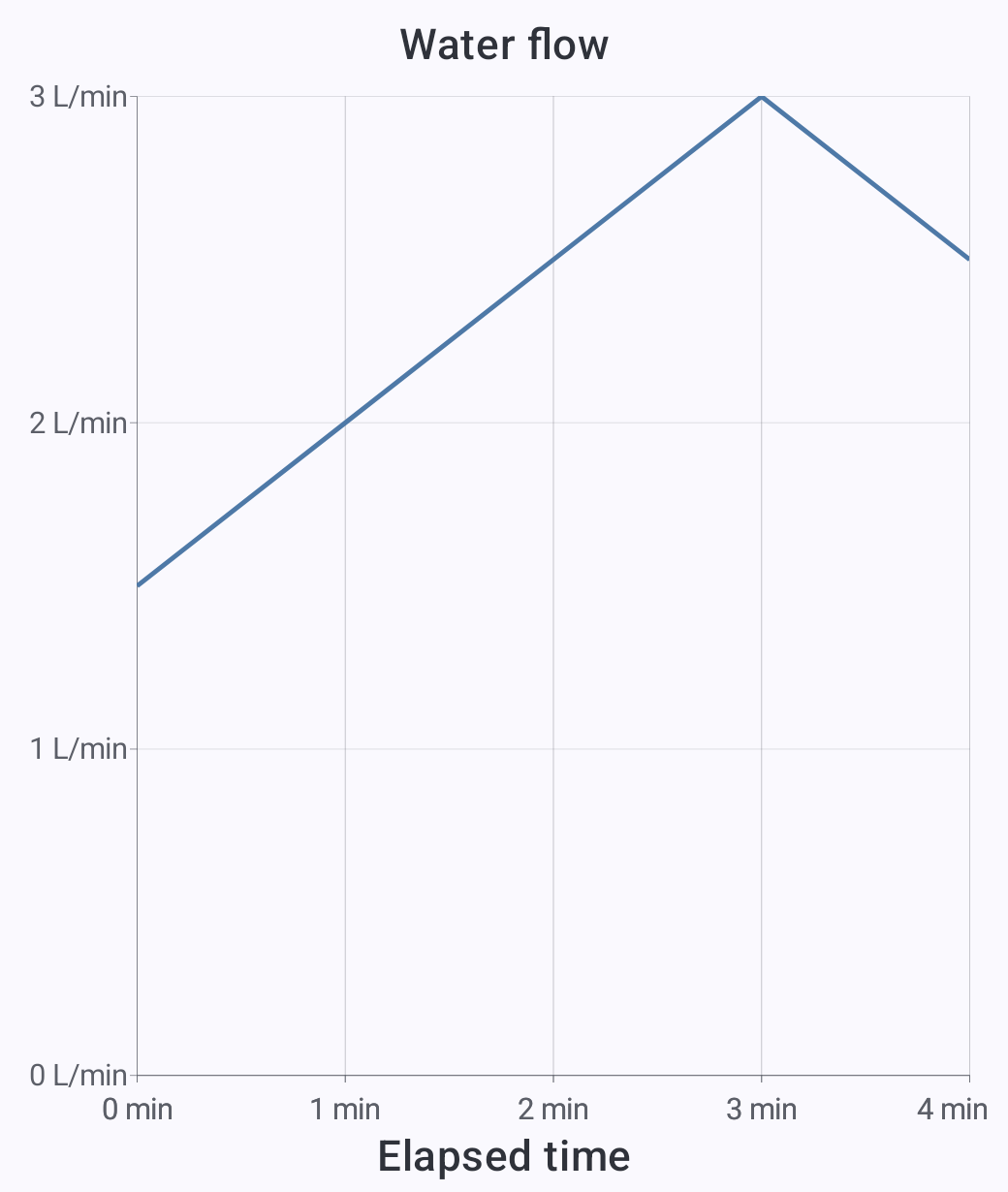
The final visual example is Compare languages and physical units. Its configuration form contains air temperature 22.5 Celsius, water volume 12.5 liters, and water flow 2.5 liters per minute. Its water-flow chart uses five synthetic readings around that configured flow. Nothing controls equipment or changes the measurement system when the viewing language changes.
One numeric field, one canonical unit
/// Water flow
/// The example flow in liters per minute. The chart varies around this value.
#[libertas_default(2.5)]
#[libertas_number(min = 0, max = 10, step = 0.5)]
#[libertas_physical_unit("liter-per-minute")]
#[libertas_format("0.#")]
#[libertas_ui_include_description]
pub flow: f64,
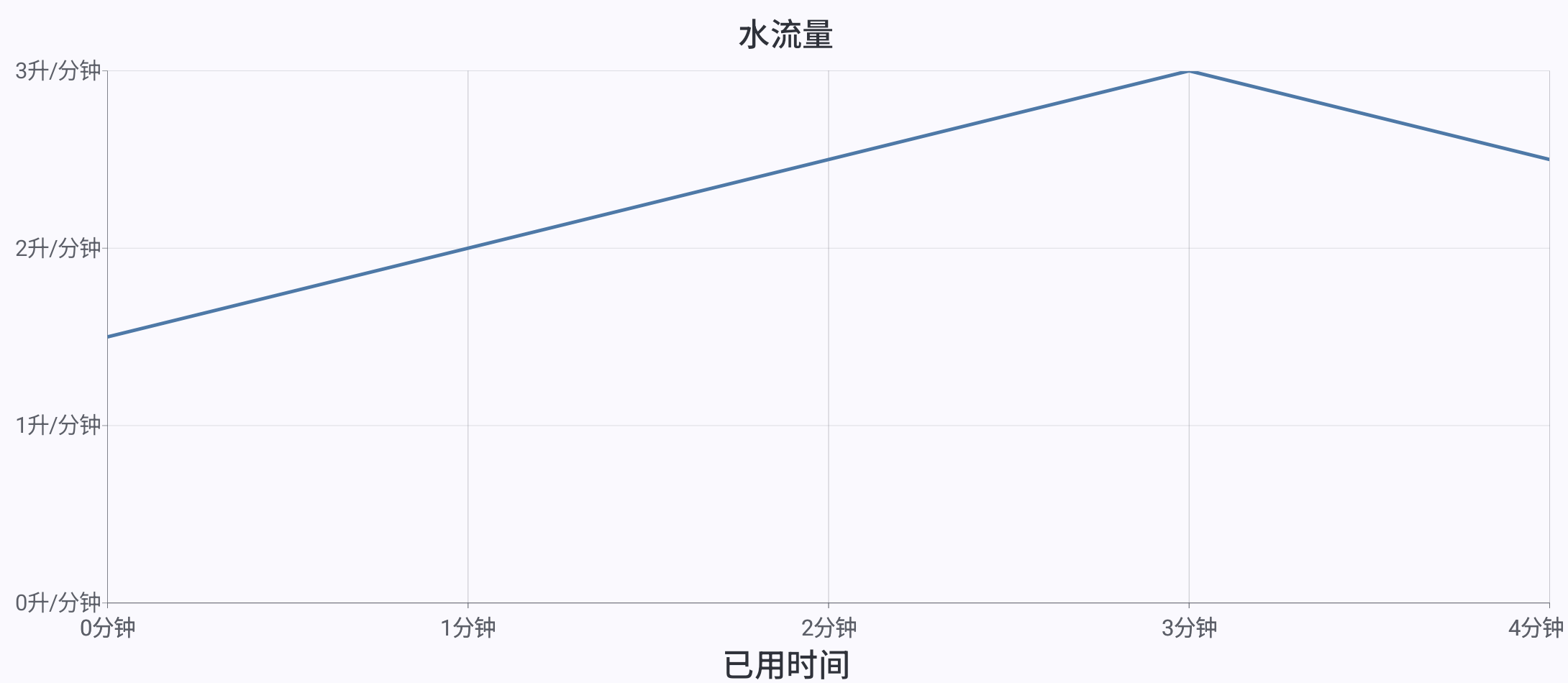
The translated document supplies 水流量 and its description. The client displays liter-per-minute as 升/分钟. The value remains 2.5.
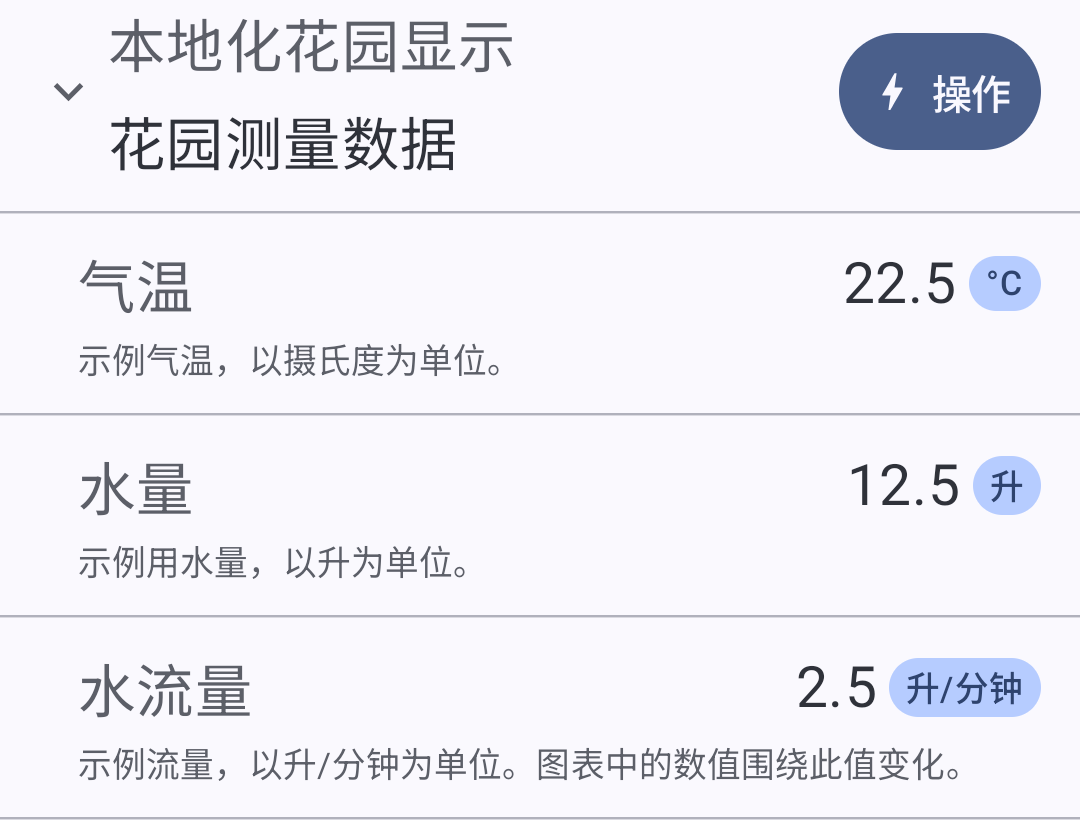
All physical units are localizable, including compound units. Translate
the source-derived names and descriptions through the App's locale document;
the client formats unit labels for its viewing locale. On charts, the same
metadata supplies localized measurement presentation for axes and tooltips.
Keep liter-per-minute in the schema and 2.5 in the payload. Do not translate
the identifier, append a unit to a numeric string, or change liters into another
unit merely because the language changes.
| Schema unit vocabulary | Count |
|---|---|
| Simple units in the current CLDR 48 vocabulary | 160 |
| Prefixes | 32 |
| Units accepting those prefixes | 39 |
| Distinct simple or prefixed identifiers | 1,407 |
Compound units are generated rather than chosen from a fixed list, so there is
no finite catalog count of all combinations. Powers, products, and ratios
include square-meter, kilowatt-hour, and liter-per-minute. These counts
describe schema vocabulary, not a guarantee that every installed client's
formatter recognizes every identifier. See physical units
for the supported fallback when a formatter lacks a unit.
Charts in 2D and 3D
Explore the chart gallery · Twenty 2D and twelve 3D views, from lines and radar to surfaces and point clouds.
Cartesian, polar, and 3D charts. The chart demonstration Apps behind the gallery contain 22 2D examples and 13 3D examples, including:
| Family | Supported chart styles |
|---|---|
| 2D Cartesian | Scatter, bubble, line, area, grouped and stacked bars, stacked area, histogram, heatmap, error bars, confidence bands, candlestick, OHLC, box plot, projected maps, networks, Sankey flows |
| 2D polar | Polar scatter and line plots, radar, pie, donut, radial bars, polar ranges |
| 3D | Scatter, trajectories, bars/columns, bubbles, height maps, wireframes, surface contours, nonuniform surfaces, waterfall spectra, impulse/stem, parametric surfaces, point clouds, combined series |
These are examples, not a fixed ceiling on chart styles. Layering, facets, and horizontal or vertical layouts create further combinations. See the 2D chart contract and 3D families.
The same chart in two languages:
The English and Simplified Chinese captures below contain the same five readings. Compare Water flow / 水流量, Elapsed time / 已用时间, and L/min / 升/分钟. The values and curve stay the same; the client allows space for each language's axis labels. Both crops use the same dimensions and display scale. Select an image to inspect its labels at full resolution.
The chart's numeric field uses the same unit identifier as the form:
/// Water flow
/// Liters per minute at this point in the demonstration.
#[libertas_chart_channel(y, tooltip)]
#[libertas_chart_scale(id = flow, kind = linear, min = 0, zero = true)]
#[libertas_chart_guide(target = y, source = scale, position = left)]
#[libertas_physical_unit("liter-per-minute")]
#[libertas_format("0.#")]
pub flow: f64,
The matching time field carries PhysicalUnit("minute"). The screenshots show
axes without an open tooltip. The earlier portrait capture
shows the same data in a narrower chart layout. Prepare App text with the
translation workflow. These examples complete the visual
tour; use the annotation reference to look up other decorators as needed.
8. A Union describes persistent data
Declare the data structures your App needs as variants of a Union. The same comments supply localized names and descriptions. Your App reads and writes these values through the Data API; the platform owns default persistence-failure handling.
9. Further reading
- Rust manual and TypeScript manual
- App recipes
- Schema annotations
- Protocols and workflows
- Client-side form caching: CacheIdentity
- Translation and charts
- Deploy with Studio
- Troubleshooting
10. Prompt a CodeBot to build your App
Describe what you want. Let the CodeBot build it against the contract.
Draft prompt—replace the brackets. The CodeBot entry routes the assistant to the CodeBot kit, the App contract, and the language and feature references; Start here has the short form of this prompt.
Build a Libertas App that [what it should accomplish].
Use [Rust or TypeScript].

People should be able to [view and change these things].
It should automatically [actions and triggers].
It must remember [data that survives restart].
It connects to [devices or services, or none].

Read https://github.com/LibertasIoT/libertas-doc/blob/main/CODEBOT.md
and follow it, including its links for the language and features this App needs.

Use the smallest design that remains logically complete.
Use supported SDK APIs and annotations; do not invent missing behavior.
Provide clear UI names, descriptions, defaults, units, and validation.
Implement the App, run language checks and Studio schema validation,
and report what works and what still needs testing or deployment.